

评论
.jpg "发送到 TinyG 的 Z 轴与 gcode 中的位置不匹配。 #229")
|
请发布 GCode,我将尝试使用我的 TinyG 设置。 |
.jpg "发送到 TinyG 的 Z 轴与 gcode 中的位置不匹配。 #229")
|
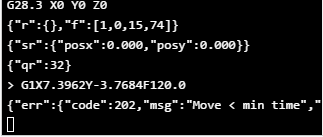
我现在遇到了 CNCJS 的问题。前几周它没有这样做,现在可以了。它随机停止并给我这个错误。每个文件发生几十次。有人帮忙解决这个问题吗?
|
|
请发布您的固件构建和固件版本,以及会导致此错误的 G 代码文件,以便我检查是否出现问题。 另请参阅#190,如果您尝试自己构建 G2 固件,则必须小心选择正确的配置和正确的 motate 分支,否则可能会随机导致不兼容固件的错误。 |
.jpg "发送到 TinyG 的 Z 轴与 gcode 中的位置不匹配。 #229")
|
抱歉,我没能回到这个话题上。附件是 gcode 文件和 Aspire 后处理文件。 这项工作是在口袋切割直径为 40 毫米、深度为 5 毫米的圆上。 |
|
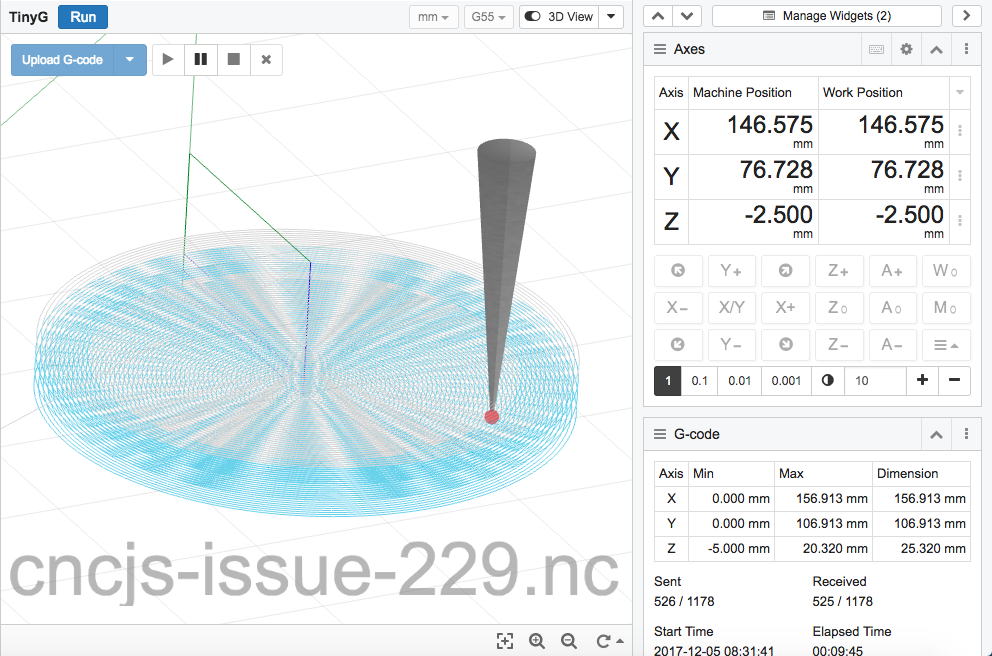
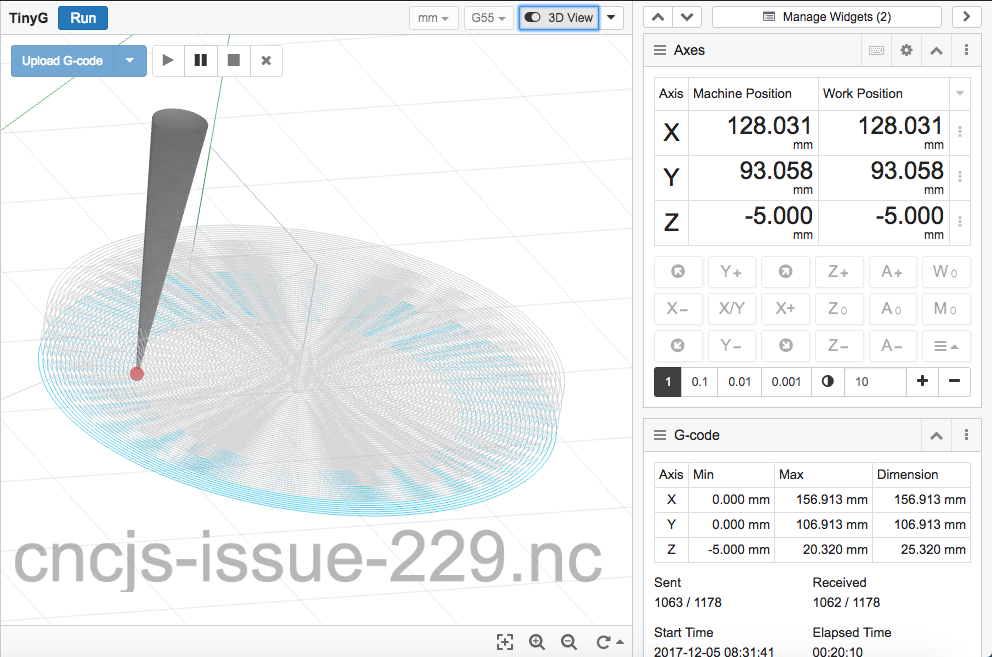
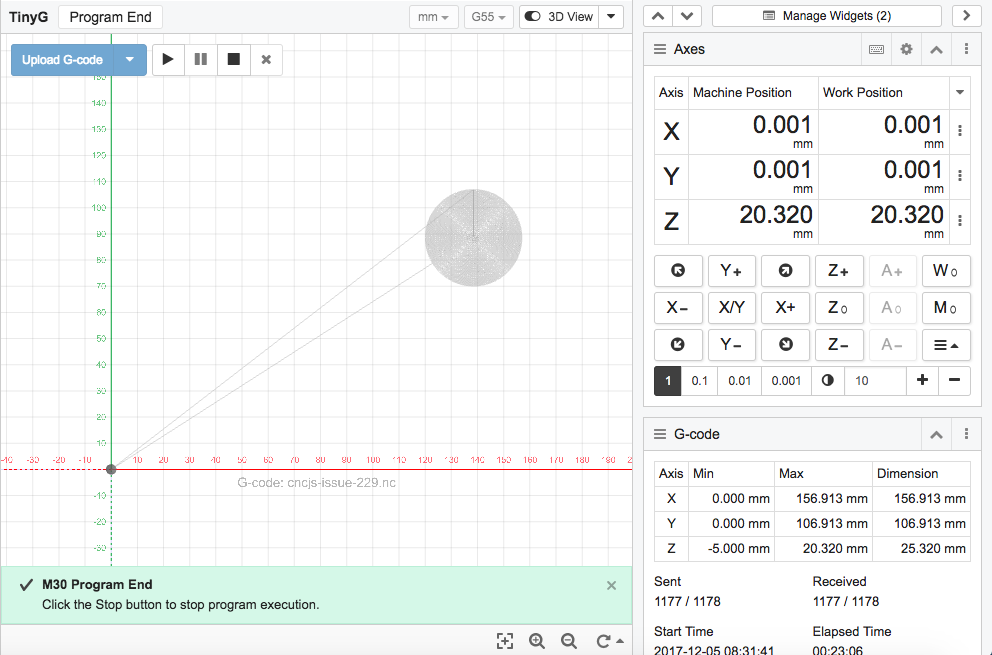
您的 G 代码似乎工作正常,我没有看到控制台出现任何错误。 -2.500mm -5.000mm 程序结束 你的 Z 工件偏移值是多少?在做这项工作之前,您是否进行过 Z 型探测? |
|
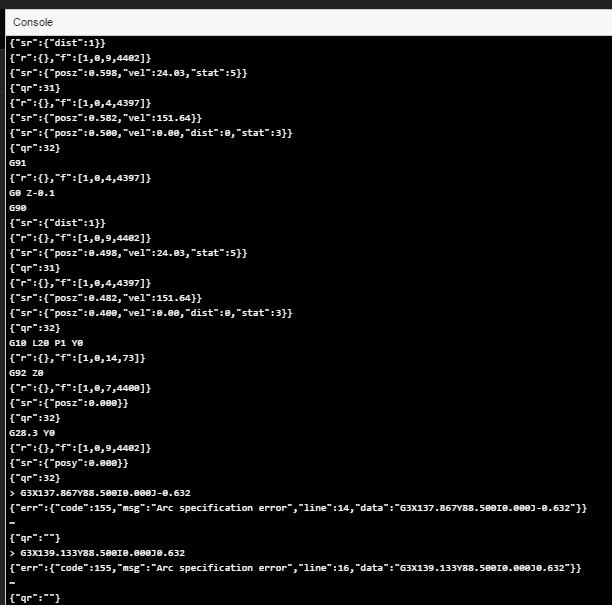
又试了一次。Gcode 的深度看起来还不错。控制台中出现 ARC 错误。我在第一次通过后停止了它,但那次通过大约 7 毫米深。你能告诉我一些关于 ARC 错误的信息吗? |
|
控制台输出与您之前发布的 GCode (simple_test.zip) 不匹配。控制台输出显示以下序列: 您发布的 simple_test.tap 文件包含以下序列: 最后一行是相同的,但前面几行不同。 “圆弧指定错误”是指命令中给出的当前起始位置和结束位置不属于给定圆心位置的圆。 在 simple_test.tap 程序中,可以确定当前的起始位置 – Y 是 89.132 作为最终 G3 行之前的行的结果,即“G1Y89.132”,而 X 是 138.500 作为 G3 的结果倒数第三行。这是一个合适的四分之一圆弧 – 它开始于 (138.5, 89.132) 并结束于 (139.133,88.5),中心位于 (138.5, 88.5)。 在控制台输出中,无法确定起始 X 值,因为“sr”位置报告中没有“posx”值,也没有设置 X 值的 GCode 命令。然而,可以确定起始Y=0。由于我们知道在这两种情况下最终的 G3 线都是“G3X137.867Y88.500I0.000J-0.632”,并且这是 (138.5, 89.132) 起点的一个很好的终点,所以说 G3 线似乎不太可能与 (something, 0) 的起点一致。 所以我们留下了一个问题:在控制台输出的最后一个 G3 行之前,那些其他行是如何进入 GCode 流的。事实证明,在有问题的 G3 之前控制台日志中的命令都是由用户界面位置设置按钮使用的。
看起来 GCode 程序可能已暂停,然后发生了一些点动和坐标重置,GCode 程序被恢复。但是在恢复之后,TinyG 无法继续,因为新的 Y 位置不是在指定位置结束的弧的可能起始位置。 我假设你停止了程序,因为它运行得太深了,然后重新定位,并以某种方式从它停止的地方恢复了程序。在那种情况下,Arc 规范错误不是直接的问题。相反,问题是定位无效后的恢复。 在simple_test.tap中,第四行是 |
|
我会再次运行它。使用屏幕截图抓取控制台的错误部分可能是一个问题。有没有办法将实际控制台数据作为一个整体复制/导出?我无法弄清楚并使用屏幕截图。
我将在明天重新运行该作业,并非常注意所使用的步骤和 gcode 文件。我相信我用的是同一个,但我可能犯了一个错误。感谢您花时间查看它。 |
|
此外,我在 20.32 上方有很多运动。或者至少我应该。我会检查以确保我没有导致您描述的情况的障碍。再次感谢。 |
|
Running a G-code program will only respond sent/received line number and the occurrence line of error to the UI to reduce unnecessary network traffic and improve the UI performance. I think he just did some UI operations and then ran a G-code program without clearing the console first, so we may get confused about the output. Displaying an error with a different color or use a prefix string to indicate different sources (e.g. sender, feeder, etc.) might be good for UX improvement. |
|
Hi @mcentyre, I thought of another possibility. If the motor tuning on your Z axis were to aggressive, then it could be missing steps during the rapid move to 20.32, making the program think it’s higher than it is. One way to test that would be to manually jog to 20.32 or higher after setting Z0 and before starting the program. That way the z motion during the run would be downward only, which, obviously, takes less motor torque than upward. |
|
|
|
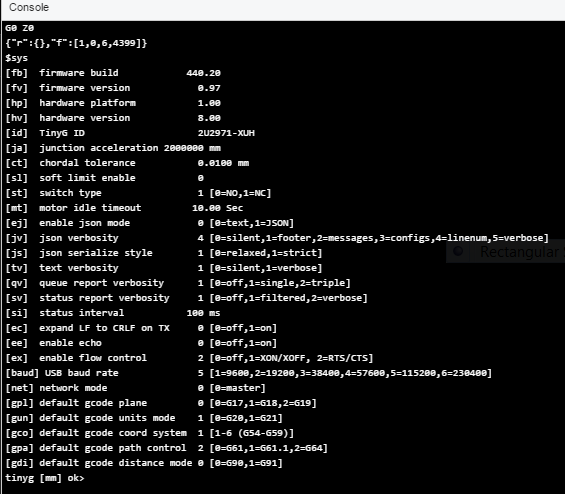
Well, it looks like you were on to something with the Z axis motion being the problem. This was suppose to be moving 5mm with each movement. Looks like I have some tuning to do. |
|
After tuning my motors, I did a stress test by making a GCode file with repeated rapid motions over the full travel of each axis. I did something like 50 back and forth motions on each axis, and also some diagonal movements to test simultaneous motion. I found that my initial settings, which seemed to work on single tests, were too aggressive. Sometimes it would go back and forth dozens of times then lose steps or stall on the next one. You can check the result of repeated moves by checking that the end position is correct after the complete sequence. Often I could just tell from the sound. I would be doing something else in the shop while the test was running. The sound would suddenly change and I would see that something had gone wrong. |
|
I’ve been through all the tuning before and had everything working great at one point. Unfortunately, it’s been a while since then. I’ll have to go back and re-learn where to make adjustments (other than the pot itself). I’m not sure why anything would have changed so I guess I’ll start with wiring checks and move forward from there. Thanks again for your help. |
|
Unrelated to this issue, but is there documentation on the UI somewhere? Such as explanations of the axis settings (the different ways to “zero” out each axis)? |
|
https://github.com/synthetos/TinyG/wiki/TinyG-Configuration-for-Firmware-Version-0.97 If your Z axis moves the right distance for G1 commands at low feedrate, then the sa, tr, mi, and po parameters in the Motor Groups section are correct. Then there are the Axis Group parameters, particularly $zvm, $zfr, and $zjm. With TinyG, the long-term way to establish those settings is to recompile after editing the file firmware/tinyg/settings/settings_YOURMACHINE.h . The relevant names in that file are – For testing, you can set the $ parameters temporarily from the console, e.g. Then, at the console, you can type GCode motion commands to check the motion: There is an alternative syntax that avoids the JSON boilerplate ({“”}), but I don’t recommend it because it can put TinyG into a state that confuses CNCjs. The alternative syntax is fine if you are using a terminal program to talk to TinyG, but it’s best to use the full JSON form from CNCjs. |
|
Regarding the different ways to zero the axis, the domain of that topic is actually GCode and CNC in general, not so much the CNCjs UI. Look up “G Code coordinate system” on the Internet. Briefly, there are several coordinate systems: Machine Coordinates:These are relative to the machine itself. You establish machine coordinates during homing operations. For machines without limit switches, or in cases where you prefer to establish zero positions manually, you can pretty much ignore Machine Coordinates and just use Work Coordinates for everything. Work CoordinatesThese are the coordinates that you see in UI readouts (the jargon for such a readout is DRO – Digital Read Out – coming from the time when manual mills with dial knobs began to be retrofitted with electronic sensors). The translation between Machine Coordinates and Work Coordinates is called Work Offsets. If Work Offsets is (0,0,0), Machine Coordinates and Work Coordinates are the same. Typically, to set up a program run manually, you insert the stock, jog to the stock-relative origin, and zero the work axes. That has the effect of setting the Work Offsets to the correct values so that the Work Coordinates are now (0,0,0). The GCode command for setting Work Offsets, i.e. for establishing the Work Coordinate origin, is “G10 L20 P1 …” There are some additional wrinkles that you can ignore for most hobby/DIY usage. I will summarize them just so you will know enough to safely ignore them: Multiple Work CoordinatesOn big machines used for commercial jobs, it’s common to have multiple fixtures for different parts of a job. You could, for example, have 3 different vises semi-permanently clamped onto the machine at different places. For such setups, it’s convenient to have a different Work Coordinate system pre-set for each fixture, so it’s easy to run the subjobs. For this reason, most CNC controllers support at least 6 different sets of Work Offsets. You can select the work offset set with G54 for set 1, G55 for set 2, … G59 for set 6. In the previous section, the GCode command for setting the Work Offsets was given as “G10 L20 P1 …”. Actually, that command sets just the first one, the G54 system. That’s the “P1” part of the command. To set the second set of Work Offsets (the G55 system), you would use “G10 L20 P2 …” By default, CNC controllers power up in G54 mode, i.e. set 1 is selected. Unless you have a multiple-fixtures setup, you can just ignore all the alternate sets and pretend that G54 mode is all there is. Temporary CoordinatesSometimes you want to “step and repeat” a GCode program to make multiple copies of the same part. For example, with a single clamping setup, I can mill 3 copies of my product. One way to do that would be to put three copies in the CAD drawing at appropriate places, the let the CAM program work out the coordinates for each copy. Another way, which was more common back in the days before CAD/CAM got so good, is to have just one version of the GCode for the part, then to offset the coordinate system between runs of that same GCode. That is “Temporary Coordinates”. It is set with the “G92” command, and it is applied “on top of” the Work Coordinate system. My advice is to avoid G92 temporary coordinates like the plague. I personally use them, with great care, but there are all sorts of ways they can bite you, especially if you have to interrupt a job in the middle and restart. In that case, it is all too easy to have the temporary coordinate offset set to something strange without you realizing it, and the machine will go off into the weeds. |




描述
试图从 ChiliPeppr 转移到 cncjs。我的初始测试工作有问题。我在 Aspire 中创建了一个简单的圆形口袋刀具路径。使用 TinyG mm 后处理器。口袋应该是10mm。gcode 中的 Z 轴命令似乎具有正确的坐标。在 cncjs 中观察控制台,它似乎将 Z 轴位置加倍,因此它会达到预期深度的两倍。X 和 Y 没有同样的问题。手动移动 Z 轴似乎工作正常。
版本
你如何安装CNCjs?
数控系统
小哥
硬件
操作系统